How Origova works
Read this page and you'll know exactly what Origova does at every step — what the scan checks, how bulk fixes are applied, what undo really reverts, and how the app stays in sync with your store. Origova follows one loop: scan → fix in bulk → verify → export. Everything below is that loop in detail.
- Install and connect
- The first scan
- The Scan & fix tab
- Every check Origova runs
- The Issues fixed tab
- Undo and ignore
- Staying in sync with Shopify
- The Export tab
- Large catalogs and background jobs
- Data access and security
- Getting help
Install and connect
Origova installs in one click from the Shopify App Store. You approve the permissions on Shopify's standard OAuth screen, and the app opens directly inside your Shopify admin. That's the whole setup: there is no separate account, no signup form, no password, and no external dashboard. If you can open your Shopify admin, you can open Origova.
On first open, the app connects to your store automatically and starts its initial catalog scan on its own — you don't have to configure anything before seeing results.
The first scan
The initial scan walks your entire catalog — every product and every variant — and checks the customs and catalog fields covered in the checks section below. On a small store it takes roughly 10–30 seconds; large catalogs take a few minutes, with progress shown in the app the whole time. Scans are read-only: nothing in your store changes until you choose to apply a fix.
When the scan finishes you land on a dashboard with three things at the top: the open issue count, a catalog readiness bar showing what percentage of your catalog passes every check, and a Run scan button you can use to re-check the store at any time.
The Scan & fix tab
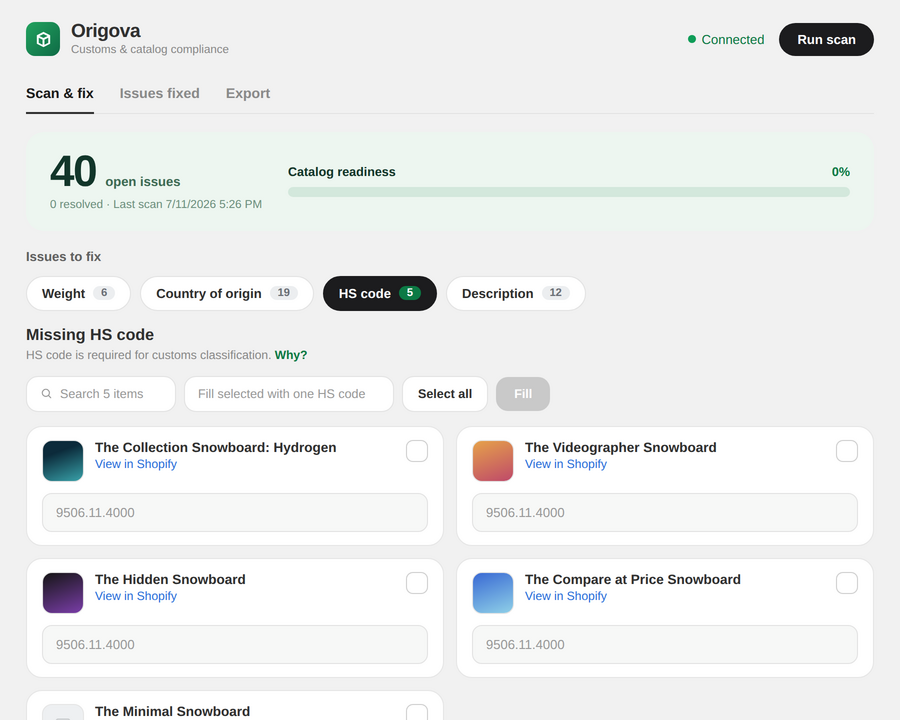
This is where the work happens. Under the readiness bar sits a row of issue-type chips — Weight, HS code, Country of origin, Description, Material — each with a live count of affected items. Click a chip and the affected products appear as cards below, each showing the product image, title, a View in Shopify link, and an input field for the value that's missing.
From there you have two ways to fix:
- Per-product: type a value into any card's field individually — right for fields that genuinely differ per product, like descriptions.
- Bulk fill: select any number of cards (or everything at once), type one value into the Fill box — one HS code, one country, one weight — and fill it into every selected card in a single move. This is the tool for the common case where many products share the same value: every cotton t-shirt carrying the same HS code, every product made in the same country.
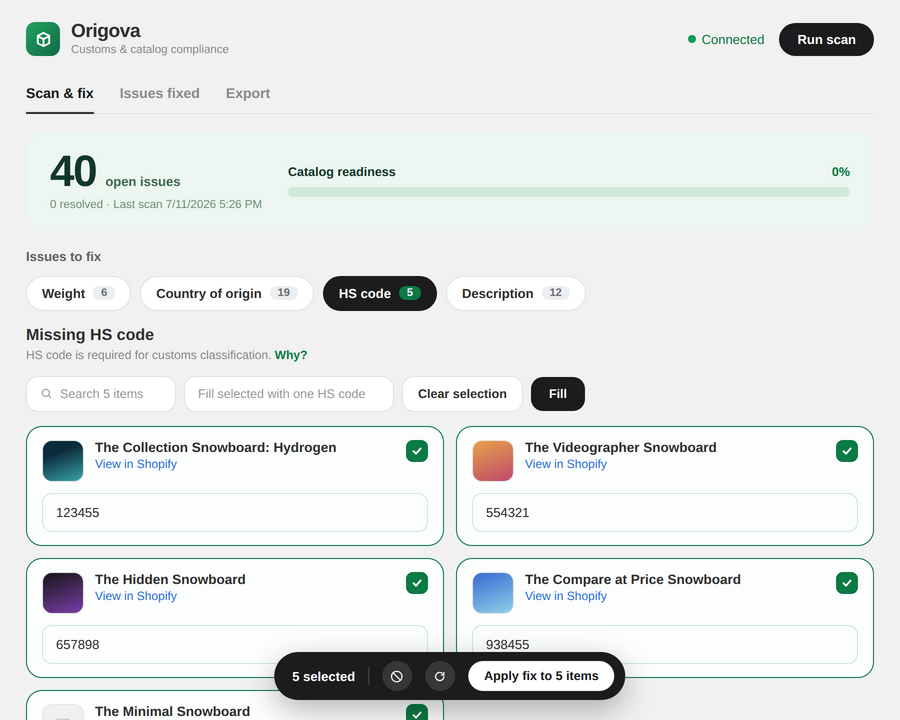
Then click Apply fix. Origova writes the values to your real Shopify products immediately and confirms what was applied. A search box helps you find specific items inside a long list, and a Clear selection button resets your picks. If a typed value isn't valid for the field — an HS code with the wrong number of digits, a zero weight — the input flags it before anything is applied, so bad values never reach your store.
Two field-specific conveniences worth knowing: HS codes can be typed with or without dots ("9506.11.4000" and "9506114000" are both accepted — Origova stores the digits and Shopify displays its standard format), and weights can be entered in your choice of unit, converted and stored correctly behind the scenes.
Every check Origova runs
Each scan evaluates every product and variant against this list:
- Missing HS code — the customs classification field is empty. Required for international shipments to clear customs. What an HS code is, if the field is new to you.
- Invalid HS code format — a code is present but isn't 6–10 digits, so customs systems will reject it. Correctly formatted dotted codes are recognized as valid, not flagged.
- Missing country of origin — no origin country set on the variant's customs information. Where this field lives in Shopify.
- Missing product weight — no shipping weight set, or a value of zero or less (which is what Shopify stores when a weight was never entered). Weight drives shipping rates and customs declarations.
- Missing material — no material recorded for the product. Customs classification often depends on it.
- Missing product description — the product has no description. Customs paperwork and carriers rely on knowing what an item is.
Findings carry severities — hard gaps like a missing HS code or a missing weight are critical, while format and quality problems like an invalid HS code are warnings — so the list tells you what matters most, not just what exists. Non-physical items like gift cards and digital downloads don't need customs data, and the scan skips them for HS code, country of origin, weight, and material automatically. Product description is the one check that still runs on them, because a description is catalog hygiene rather than a customs field.
One honest boundary: Origova finds what's missing; it does not decide classifications for you. The right HS code or origin country for a product is your call (our category guides help you make it). What Origova removes is the part Shopify gives you no tool for — knowing which of your products have gaps, and filling them at scale.
The Issues fixed tab
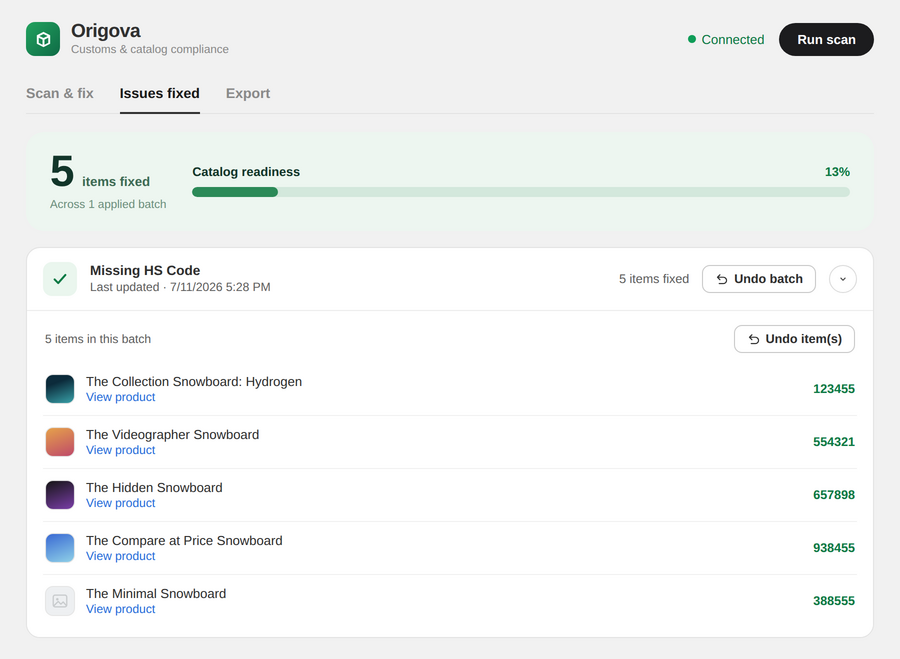
Every applied fix goes on record here, grouped into batches — "Missing HS Code, 4 items fixed," with a timestamp. The tab's header shows your total items fixed and the same catalog readiness bar, so you can watch it climb toward 100% as you work.
Expand any batch and you'll see exactly what changed, product by product: each item with its image, a View product link into Shopify, and the value that was applied. Nothing is a black box — the history stays with you, every batch, every item, every timestamp.
Undo and ignore
Nothing you do in Origova is locked in:
- Undo a whole batch — one click and one confirmation reverts every value that batch applied. Shopify is restored to the previous values immediately, and the affected items return to Scan & fix as open issues.
- Undo selected items — expand a batch and revert only the items you choose, leaving the rest of the batch in place.
- Ignore — for items you've decided not to fix (a product that never ships internationally, say), Ignore dismisses them without writing anything to your store. Ignored items stay ignored across future scans — they won't nag you again — and you can un-ignore them later, which brings them back as open issues.
Undo isn't a display trick: it writes the previous values back to your actual Shopify products, and the dashboard's counts and readiness bar update to match. Fix boldly; everything is reversible.
Staying in sync with Shopify
Origova treats your Shopify store as the source of truth, and it stays current from both directions:
- Fixes flow out instantly. When you apply a fix, the write goes straight to Shopify. Open the product in your admin and the value is right there in the shipping and customs section.
- Your own edits flow back in. If you change a value directly in the Shopify admin — including the customs fields like HS code, country of origin, and weight — Origova hears Shopify's own update events and adjusts automatically. Fix something by hand and the issue clears and lands in your Issues fixed history on its own, no rescan required.
- Rescan whenever you want. The Run scan button re-checks the entire catalog from scratch — the way to sweep in newly added products or confirm an all-clear.
The Export tab
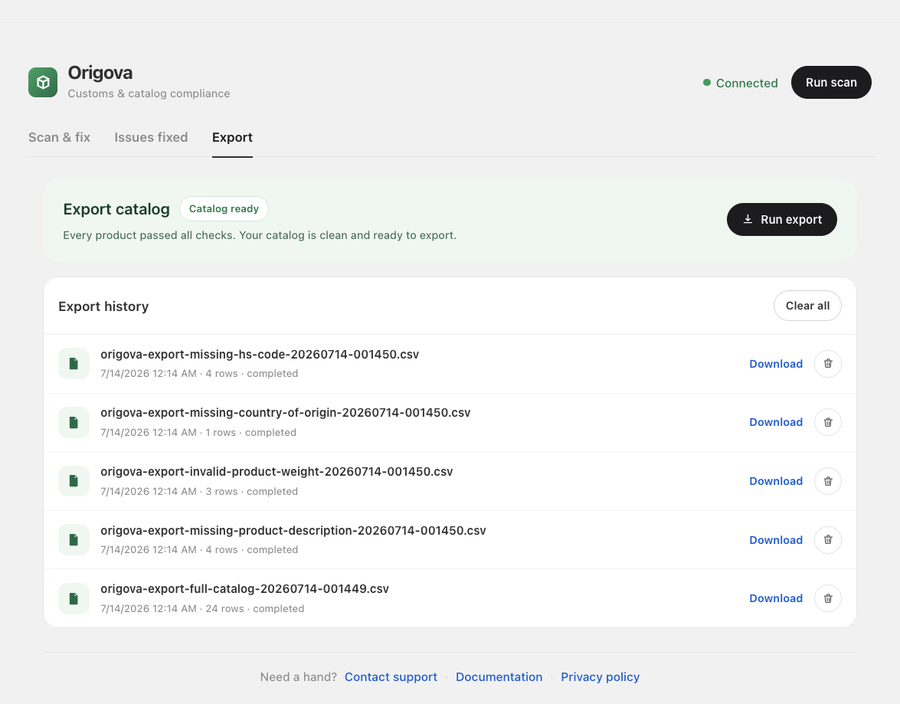
When your catalog is clean, the Export tab says so — a Catalog ready badge confirms every product passed every check. From here, Run export generates customs-ready CSV files:
- Full catalog export — every product with its complete customs data, one file.
- Per-issue exports — separate files listing just the items still missing an HS code, still missing a country of origin, and so on. Useful as a punch list, or for handing to a customs broker or fulfillment partner.
Finished exports collect in Export history, each with its row count, timestamp, and a Download link — and a delete control when you want the list tidy. Exports run on demand; your data isn't sent anywhere until you click the button and download the file yourself.
Large catalogs and background jobs
Big stores are the point, so the heavy work runs in the background. Large scans and large fix batches process on the server with progress shown in-app — the interface stays usable while they run, and closing the tab doesn't kill the job; results are waiting on your next visit. Writes to Shopify respect Shopify's own API rate limits, with automatic pacing and retries, so a batch across thousands of variants completes cleanly instead of hammering your store — a batch that size simply keeps applying in the background over several minutes until it's done.
Data access and security
Origova requests the minimum Shopify access it needs: product and inventory read/write — the exact fields it scans and fixes. It never reads customer data, order data, or checkout data, and it doesn't touch your theme. The app runs embedded in the Shopify admin behind Shopify's own authentication. Details are in the privacy policy.
Getting help
Three places, in escalating order: the documentation covers setup and each tab in more depth; the support page answers common questions; and for anything else, email us at support@origova.com — real answers from the people who build the app.
Frequently asked questions
Does Origova need a separate account or login?
No. Origova is an embedded Shopify admin app — you install it from the Shopify App Store, approve the permissions, and it opens inside your Shopify admin. There is no external signup, password, or separate dashboard.
Does scanning change anything in my store?
No. Scans are read-only — they build a list of findings inside Origova. Your store data only changes when you explicitly apply a fix, and every applied batch can be undone, in whole or item by item.
What does Origova check on each product?
Every product and variant is checked for missing HS codes, missing country of origin, missing product weight (including a zero or negative value, which is what Shopify stores when a weight was never entered), missing material, missing product descriptions, and HS codes in a format customs systems will reject. Gift cards and digital products are skipped for the customs fields automatically.
What happens if I edit a value directly in Shopify instead of in Origova?
Origova listens for Shopify's own update events, so changes you make in the Shopify admin — including HS code, country of origin, and weight edits — flow back automatically, and your dashboard counts update to match. The exception is a bulk import of brand-new products, which Origova defers to your next full scan rather than reconciling thousands of notifications one at a time. You can run a fresh scan at any time.
What data can Origova access?
Product and inventory data only — the fields it scans and fixes. Origova never reads customer, order, or checkout data.
Related: What is an HS code? · Adding HS codes to Shopify in bulk · Shopify's customs information fields · Country of origin in Shopify